Adjusting Draw Dates for In-Office Accounts
This guide explains how to modify an in-office paying member’s draw date using the Adjust Contract Date tool.
Where to Find the Adjustment Tool
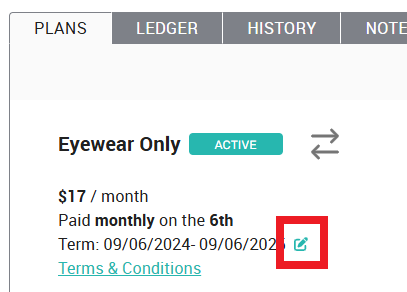
The draw date adjustment tool is located next to the member’s term dates on the platform. It appears as a pencil icon, allowing users to make necessary modifications.
Steps to Adjust the Draw Date
Locate the member’s term dates on the platform.
Click the pencil icon to open the adjustment tool.
Enter the desired start date for the plan.
A green check mark will appear—click it to confirm and save the change.
Once saved, the system updates the member’s draw date accordingly.
Related Articles
Implementing Payment Collection Systems in Your Office
Overview Ensuring accurate payment tracking in your office is crucial for financial management and membership renewals. Below are recommended systems for enrolling patients, posting payments to your PMS, and handling membership plan payments ...User Permissions for Enhanced Office Security
To bolster security across our offices, we've made updates to the permission levels for user accounts. This guide outlines the new restrictions and explains how to update permissions when access to sensitive information is required. Restricted ...How to Handle Delinquent Accounts
When a member's account is delinquent it means that they have failed to pay their membership plan balance. This usually happens when a member has been paying monthly and stops making the monthly payments prior to their 12 month term being fulfilled. ...Accept in-office payment for membership fees
The platform allows you to receive payment for annually renewing plans in your office. This means you can accept cash, check, HSA, FSA, and whatever other payment source you already accept in your office for a member's annual membership fees. Monthly ...Accidentally clicked "collect payment in office"
If you've accidentally clicked the "collect payment in office" link, but you didn't actually collect a payment in the office and prefer to process the patient's payment on the VisionHQ portal, please email our support team to resolve the issue. ...