Change an in-office payor's next payment date
After adding an in-office payor's membership, you can adjust the Next Payment Date by editing the Contract Term for that subscription.
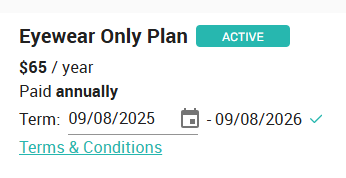
The end date for the term will automatically be stored as the Next payment date.
Related Articles
Change a member's payment date
To change when next a member gets charged, you may navigate to the member's account. Under the "Actions Button" you'll find a function to adjust the member's next draw date. For example, Jessica joins your membership plan on August 8, but wants ...Change a member's term date
This a two step process that involves changing a member's next payment date as well as term dates. Click on the Pencil icon next to the member's Term dates and use the check icon to save the changes. If you want to change a member's payment date, ...Implementing Payment Collection Systems in Your Office
Overview Ensuring accurate payment tracking in your office is crucial for financial management and membership renewals. Below are recommended systems for enrolling patients, posting payments to your PMS, and handling membership plan payments ...Change a member's payment method
A number of different payment methods can be stored to a member account, but only one can be 'active' at any given moment. When a member first enrolls, the payment method entered will be securely stored with the payment processor, and used for all ...Adjusting Draw Dates for In-Office Accounts
This guide explains how to modify an in-office paying member’s draw date using the Adjust Contract Date tool. Where to Find the Adjustment Tool The draw date adjustment tool is located next to the member’s term dates on the platform. It appears as a ...