How to: Charge a member manually
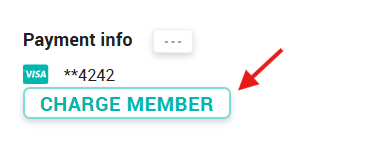
- Locate the member's account
- Select “Charge member”
- Type the amount
- Select a reason from the dropdown
- Add a brief description to appear in their ledger
- Type your full name in the box
- Click the blue button
* - You may need to click the "View Account Owner" link, if the "..." button is unavailable.
That’s it. Financial institutions generally process charges immediately.
Related Articles
Change a member's payment method
A number of different payment methods can be stored to a member account, but only one can be 'active' at any given moment. When a member first enrolls, the payment method entered will be securely stored with the payment processor, and used for all ...How To: Cancel a member's plan
Important info: Please note that EVERY member that has enrolled in a plan is locked into a 12 month term. They agree to this the moment they enroll and it’s defined in the terms & conditions. This means you should NOT be cancelling a monthly paying ...How To: Change a member's plan
Navigate to the Members tab Select the member in question from the list Click the 'change plan' link under the “Actions” button of Roger's “Plans”' tab and follow the prompts. Select the new plan Select the effective date Immediately On Term Renewal ...How do I make an inactive member active?
Click the CHARGE AND ACTIVATE button in the Manage Plan area and follow the prompts. Enrolling from this button follows the same process as enrolling a new member, so it should feel familiar. :)Can a member pay the balance of their monthly membership?
Yes. In your platform, this is accomplished by switching their monthly membership to an annual membership and applying the payments already received, then collecting the remaining balance. Confused? Don't be. Check it out: Click the "Actions Button" ...