How To: Edit member info
Need to correct a typo on a member's name?
- Navigate to the Members tab
- Select the member
- Click the “Edit” link next to their member info
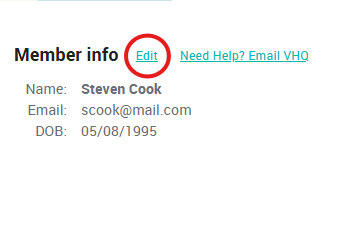
Make the necessary adjustments, then select "Update". That was easy!
Related Articles
Edit a member's name
Need to correct a typo on a member's name? Click the Edit button under the Member Info section. If the member is the account owner, you can also change the phone number and email address for the account.How to: Enable/Disable Text (SMS) Notifications for a Member
NOTE: This article covers how to enable/disable text notifications for a member. To disable text notifications for all members at the office level, click here. From your Dashboard: Click Members Select a member Click Edit next to Member info ...Change a member's payment method
A number of different payment methods can be stored to a member account, but only one can be 'active' at any given moment. When a member first enrolls, the payment method entered will be securely stored with the payment processor, and used for all ...How To: Cancel a member's plan
Important info: Please note that EVERY member that has enrolled in a plan is locked into a 12 month term. They agree to this the moment they enroll and it’s defined in the terms & conditions. This means you should NOT be cancelling a monthly paying ...Member Portal Access and Self-Service Guidance
These are the steps you must provide to your members to ensure they can successfully access their membership information, transactions, and year-end summaries through the patient portal. Empowering members to use the portal reduces administrative ...