Edit a member's name
Need to correct a typo on a member's name?
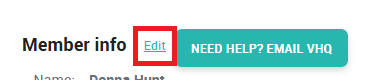
Click the Edit button under the Member Info section. If the member is the account owner, you can also change the phone number and email address for the account.
Related Articles
How To: Edit member info
Need to correct a typo on a member's name? Navigate to the Members tab Select the member Click the “Edit” link next to their member info Make the necessary adjustments, then select "Update". That was easy!How to: Charge a member manually
Locate the member's account Select “Charge member” Type the amount Select a reason from the dropdown Add a brief description to appear in their ledger Type your full name in the box Click the blue button * - You may need to click the "View Account ...Member Statuses
In your Member List, the badges next to each member's name denote their current status. The color and the text tell you the full story: - Green means this member currently has an active membership. The text may read “ACTIVE” or “PAID IN OFFICE”. - ...How To: Cancel a member's plan
Important info: Please note that EVERY member that has enrolled in a plan is locked into a 12 month term. They agree to this the moment they enroll and it’s defined in the terms & conditions. This means you should NOT be cancelling a monthly paying ...Transfer a member to another office
Overview We’ve introduced a feature that enables seamless account transfers between locations. This enhancement simplifies the process of moving member accounts, ensuring a smooth transition within your system. How to Transfer an Account Transferring ...